
View PSD Layers on Android: How to Inspect Mobile Files
Quick Answer: Viewing PSD Layers on Android
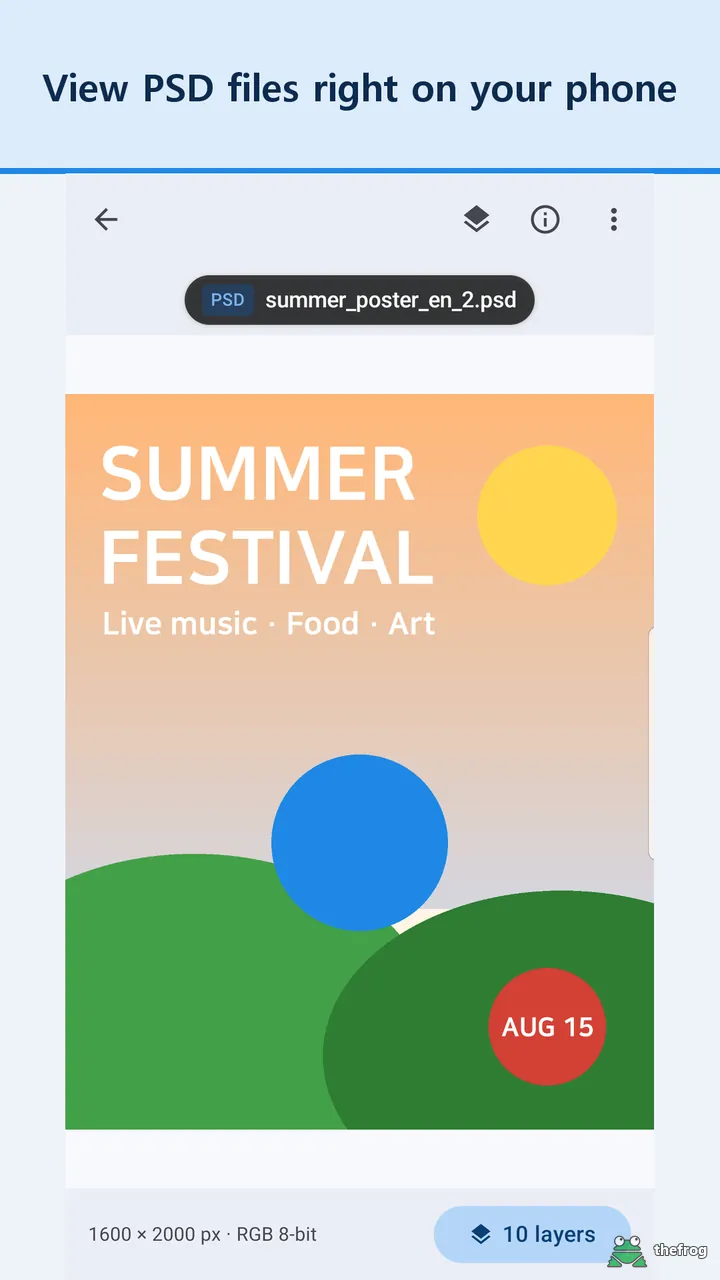
You can view PSD layers on Android using a dedicated file viewer such as PSD & PSB File Viewer. When a client sends a Photoshop document, you can open it on your phone to browse the layer list, inspect groups, and check opacity. You can also view document dimensions, DPI, and color mode.
Mobile inspection is view-only. It allows you to verify layer structure and visibility on the go, but it does not replace desktop Photoshop editing.
Why Photoshop Files Use Layers
According to Adobe Photoshop documentation, "Layers let you separate different parts of an image into individual components." Rather than flattening artwork into a single surface, Photoshop keeps elements on separate layers so they can be managed individually.
Photoshop supports several layer types, including image, adjustment, type, shape, and Smart Object layers. In addition, Adobe explains that "layer groups help you organize related layers together for easier management." Groups keep complex projects structured by bundling related elements into folders.
Layer settings also determine appearance. Adobe documentation notes that opacity controls transparency from fully opaque at 100% to nearly invisible at 1%. Furthermore, layer visibility can be changed without deleting or moving content. On mobile, inspecting these properties helps you understand how the artwork is assembled.
Steps to Inspect PSD Layers on Android
To view layers in a client-supplied PSD file on your Android device, follow these steps:
- Save the file: Download the .psd or .psb file to your Android device storage.
- Open in PSD & PSB File Viewer: Open PSD & PSB File Viewer and select the PSD or PSB file.
- Examine the merged view: Pinch or double-tap to zoom. When zooming stops, the visible area is re-read for a sharper view.
- Open the layer list: Open the layer list to review groups and hidden layers.
- Check layer types and opacity: Review labels for text, Smart Objects, and adjustments, along with opacity levels.
- Inspect document info: Check dimensions in pixels, DPI, print size, color mode, bit depth, and layer count.
Photoshop stores a merged image only when Maximize Compatibility is enabled during saving. If this option was turned off, PSD & PSB File Viewer displays a notice instead of the image, though you can still inspect the layer list and document info. If you need the merged image, you can request an updated file with this note:
Could you please re-save this PSD file in Photoshop with Maximize Compatibility turned on? That includes the merged preview needed to view the image on mobile.
What You Can Inspect in the Layer List
The layer list provides several details about the internal setup of the PSD file:
- Groups and structure: You can see layer groups and review the listed layer structure.
- Layer types: The list indicates text layers, Smart Objects, and adjustment layers.
- Visibility states: You can identify which layers are visible and which are hidden in the document.
- Opacity percentages: You can see individual layer opacity settings.
- Document specifications: Document info reports pixel dimensions, DPI, print size, color mode, bit depth, color profile, and file size. In some cases, files in certain color modes may not show the merged image.
Mobile PSD Inspection Checklist
Use this checklist when reviewing PSD files on Android:
- Confirm the file is a PSD or PSB document.
- Check if the merged image displays or shows a compatibility notice.
- Review layer groups and check that expected layers are present.
- Check visibility flags to see if elements are marked hidden.
- Verify document dimensions, color mode, and DPI in document info.
- Keep in mind that mobile layer inspection is view-only and does not provide desktop editing tools.
About PSD & PSB File Viewer
PSD & PSB File Viewer opens PSD and PSB files directly on your Android phone without desktop Photoshop. You can pinch or double-tap to zoom into the merged image, browse the layer list with groups, and review document info such as pixel dimensions, DPI, print size, color mode, bit depth, color profile, layer count, and file size. The app allows you to view up to 5 different PSD or PSB files for free, and opening the same file again does not count toward that limit.
A one-time Plus purchase unlocks unlimited viewing, layer controls (turning layers on and off, changing layer colors, and saving a single layer as a PNG), PNG or PDF export at up to full resolution, and opening files from inside ZIP archives. The app processes files on your device and does not send them off your phone. It uses no ads or analytics SDKs, and requires no account or sign-in. You can get PSD & PSB File Viewer on Google Play.
PSD & PSB File Viewer is an independent viewer, not an official Adobe app. Adobe and Photoshop are trademarks of Adobe Inc.
Official documentation: Read more on the Adobe Photoshop Layers Overview and Adobe Layers and Layer Groups Guide.


Learn more about PSD & PSB File Viewer or get it on Google Play.

Enjoying the app? Leave a review on Google Play: PSD & PSB File Viewer