Open Procreate Files on Android Without an iPad
Checking Procreate Art on Android
If a client or collaborator sends you a .procreate file, you can check it directly on an Android device even if you do not own an iPad. While the official Procreate app requires an iPad running iPadOS, you can open and review the artwork preview on Android using Brush Viewer.
The conclusion is straightforward: you cannot run Procreate itself or edit drawing layers on an Android phone, but you can inspect the saved preview image, check file details, review layer names, and share annotated notes. For quick checks and client feedback, a preview can be enough.
Why .procreate Files Require Special Handling
The .procreate format is Procreate's native artwork format created on iPad. It can contain artwork layers, masks, effects, canvas information, and time-lapse video data. The current official Procreate app requires a compatible iPad running iPadOS, so it cannot be installed as the Procreate editor on an Android device.
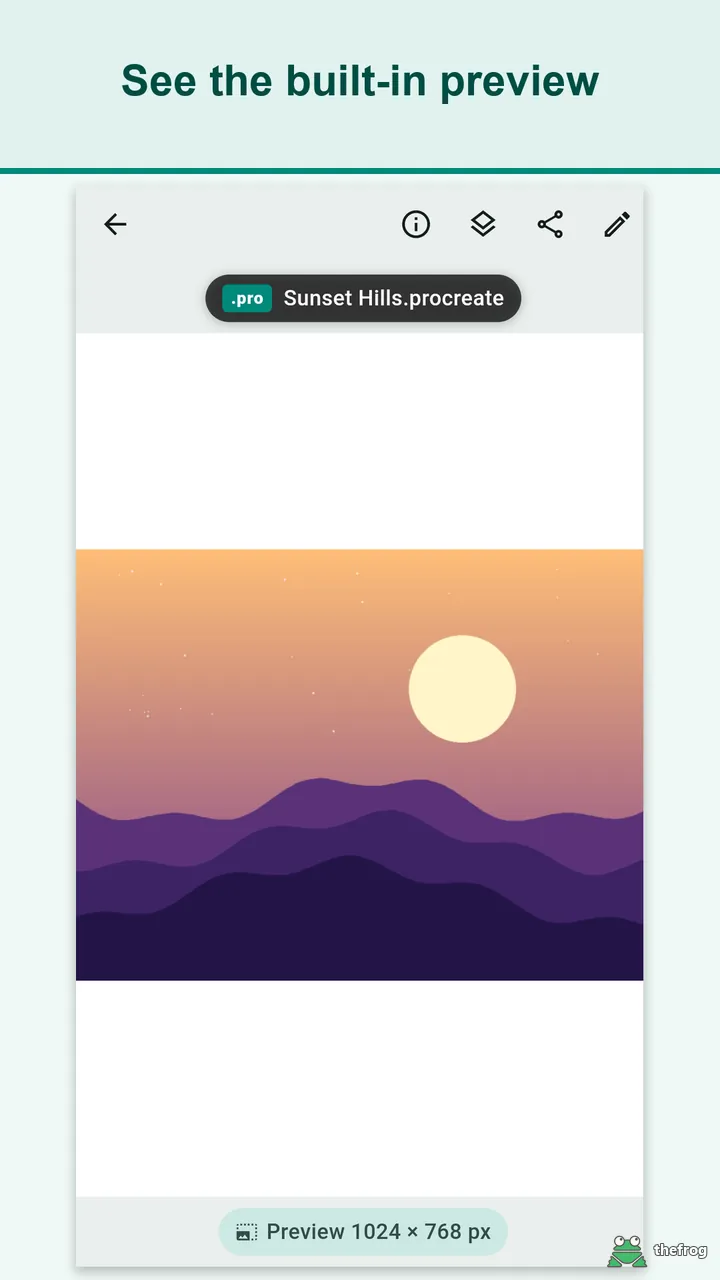
A .procreate file may contain a saved artwork preview that Brush Viewer can display. This preview image is usually 1024 pixels on its long side. Brush Viewer reads this preview directly from the file. Brush Viewer displays this saved preview instead of rendering the full-resolution canvas or individual layers.
While this embedded image does not replace the full-resolution canvas or provide editable layers, it provides a visual preview of the artwork. If a file has no saved preview, the app notifies you instead of showing a blank screen.
Steps to Open and Review a .procreate File
You can review a .procreate file on an Android phone or tablet in a few steps:
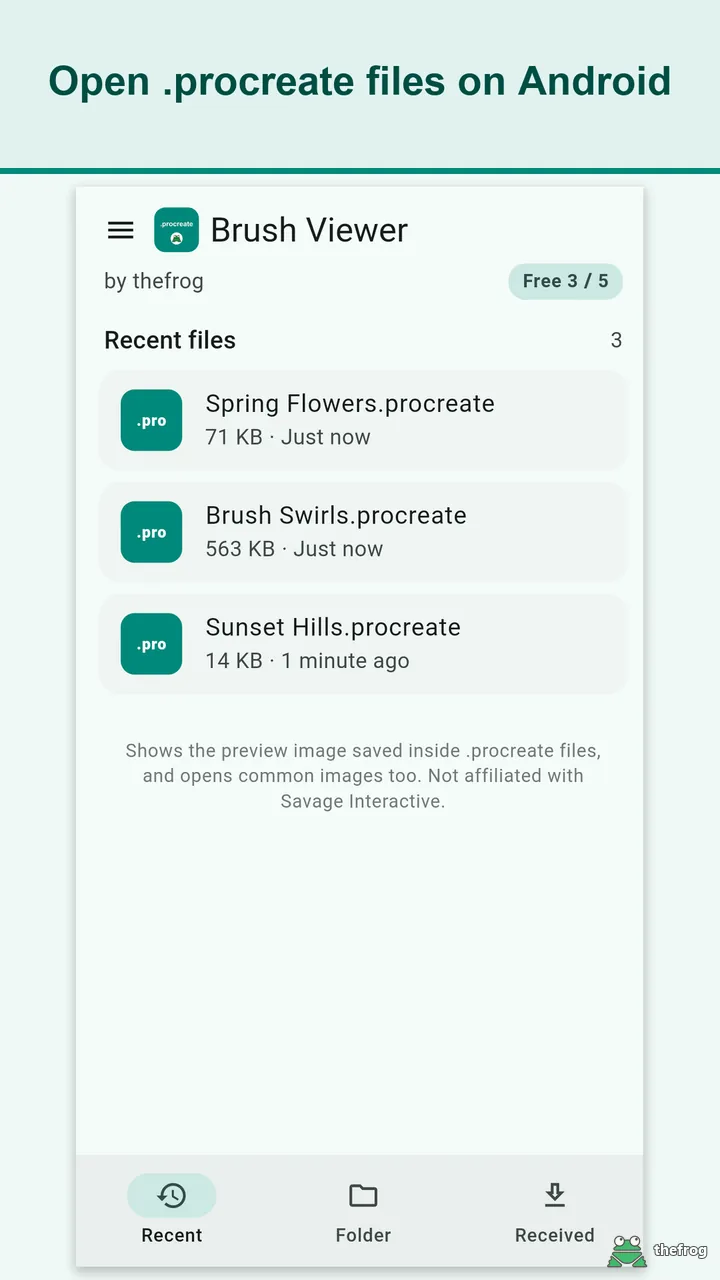
- Receive and locate the file: Get the .procreate file onto your phone, for example from email, a chat app or cloud storage. Then open it with the system file picker, or use "Open with" or "Share" from another app to send it to Brush Viewer.
- Inspect the artwork preview: Open the file to view the saved preview. The app displays the preview dimensions alongside the file name and file size. You can pinch to zoom and pan across the image to check the composition and line work. Keep in mind that the saved preview is a reference, not a full-resolution or color-critical view.
- Check layer information: Open the experimental layer info panel to see a read-only list of layer and group names, opacity values, blend modes, and hidden, locked, or clipped states in the order saved in the file. Layers cannot be edited or turned on and off in this view, and some files may not read in full detail.
- Add markup notes: Use the drawing tools to add pen strokes, highlighters, rectangles, circles, arrows, or text notes over the preview. You can select, move, resize, or delete marks, and use undo or redo.
- Share your feedback: Save the annotated preview as a PNG image or share it directly to another app. Your marks are saved to a separate image, and the original .procreate file is not modified.
If the preview resolution is insufficient for your production needs, you can ask the sender for an exported image. Here is a message you can copy and send:
"Thank you for sending the file. I reviewed the preview and layer structure on my device. Could you please export a full-resolution PNG or PSD from Procreate so we can use it for final production?"
Checklist Before Approving Artwork on Mobile
Before completing your review of a .procreate file on Android, consider this checklist:
- Check preview display: Confirm that the file opens and displays its saved preview image.
- Note preview size: Remember that the preview is usually 1024 pixels on its long side, so close zooming may look less sharp than a full-resolution canvas.
- Inspect layer structure: Review the read-only layer names and blend modes to see whether expected entries are listed, keeping in mind that some files may not be read completely.
- Request production formats when needed: If you need full print resolution or separated layers for Photoshop editing, request an exported PSD or high-resolution image from iPad.
- Preserve original assets: Save all annotations and markup as separate PNG files to keep the original file untouched.
Checking Files with Brush Viewer
For designers and clients who need to review iPad artwork on Android, Brush Viewer: .procreate files provides a way to open .procreate files without an iPad. The app also opens common image formats, including JPG, PNG, WebP, GIF, BMP, and HEIC.
File processing takes place entirely on your device, with no account, no external server, and no advertising SDKs. Viewing files works without an internet connection.
Procreate is a registered trademark of Savage Interactive Pty Ltd. Brush Viewer is an independent app and is not affiliated with, endorsed by, or sponsored by Savage Interactive Pty Ltd.
Learn more in the Brush Viewer guide. For background on the format, see the Procreate Handbook: gallery file types and the Procreate FAQ.

Learn more about Brush Viewer: .procreate files or get it on Google Play.

Enjoying the app? Leave a review on Google Play: Brush Viewer: .procreate files