
Turn PSD Layers On and Off on Phone: Compare Designs
Can You Compare Design Options by Toggling PSD Layers on a Phone?
With PSD & PSB File Viewer Plus, you can show and hide layers in supported RGB and Grayscale PSD files with 8 or 16 bits per channel. When a designer places different headlines, backgrounds, or color schemes on separate layers, toggling layer visibility lets you review each option one by one.
According to Adobe Help documentation, layer visibility controls are designed for working with complex documents and quickly comparing design variations. Hiding a layer does not delete or modify the layer content. It changes what appears in the document window.
How Layer Visibility Works in Photoshop Documents
In desktop Photoshop, each layer and layer group has an eye icon in the Layers panel. Selecting the eye icon hides that layer or group from view. In addition, desktop users can isolate a single layer by using Alt-click on Windows or Option-click on macOS next to the layer they want to view alone.
Adobe notes that visibility controls affect only what appears in the document window and the Layers panel. They do not modify the layer content itself. Similarly, expanding or collapsing a layer group alters only how the panel is organized; it does not change which layers are visible in the document.
For mobile users reviewing files outside the office, this means you can check different concepts without worrying about overwriting the design. Toggling visibility is non-destructive. However, viewing PSD files on a phone involves different processing than desktop software. PSD & PSB File Viewer may display a different result when some layer effects or adjustment layers are present, because those elements are not applied when layers are toggled.
Steps to Compare Design Options on Your Phone
When you receive a multi-layered PSD file on a mobile device, follow these steps to inspect different design options:
- Open the document in a layer-capable viewer: Use a viewer that provides a layer list and layer visibility controls.
- Open the Layers panel: Review the list of layers and layer groups. Well-organized files group related elements together, such as alternate text treatments or background variations.
- Toggle the eye icon: Tap the visibility icon next to a layer to hide or show that element. You can switch between two headline options or test different background images.
- Check isolated details: Hide distracting foreground text or decorative elements when you need to inspect an underlying graphic or photo layout.
- Save a snapshot if needed: With PSD & PSB File Viewer Plus, you can save the merged image as a PNG or PDF at up to full resolution.
If you are requesting files from a designer or collaborator, you can share this short note to help them organize the document for mobile review:
Please keep alternate design concepts on separate layers with descriptive names. That way, our team can toggle layers directly on a phone to review each option.
Mobile PSD Layer Checklist
Before reviewing design variations on a phone, keep these technical points in mind:
- File modes and color depth: Mobile layer controls may require specific document formats. For example, some tools support visibility changes on RGB and Grayscale files with 8 or 16 bits per channel.
- Complex effects and adjustment layers: Mobile viewers do not act as full Photoshop engines. In PSD & PSB File Viewer, some elements, such as layer effects and adjustment layers, are not applied when layers are turned on or off, so the result may differ from Photoshop.
- Merged preview vs. layer records: Photoshop stores a flat merged image only when the Maximize Compatibility preference was enabled during save. If that setting was disabled, some viewers show file metadata and layer lists without a pre-rendered full image.
- Non-destructive viewing: Hiding a layer in a viewer does not delete layer data or modify the original PSD file.
- Export limitations: Exporting the visible preview to a format like PNG creates a flattened raster image. It does not preserve editable layers.
Viewing PSD Layers with PSD & PSB File Viewer
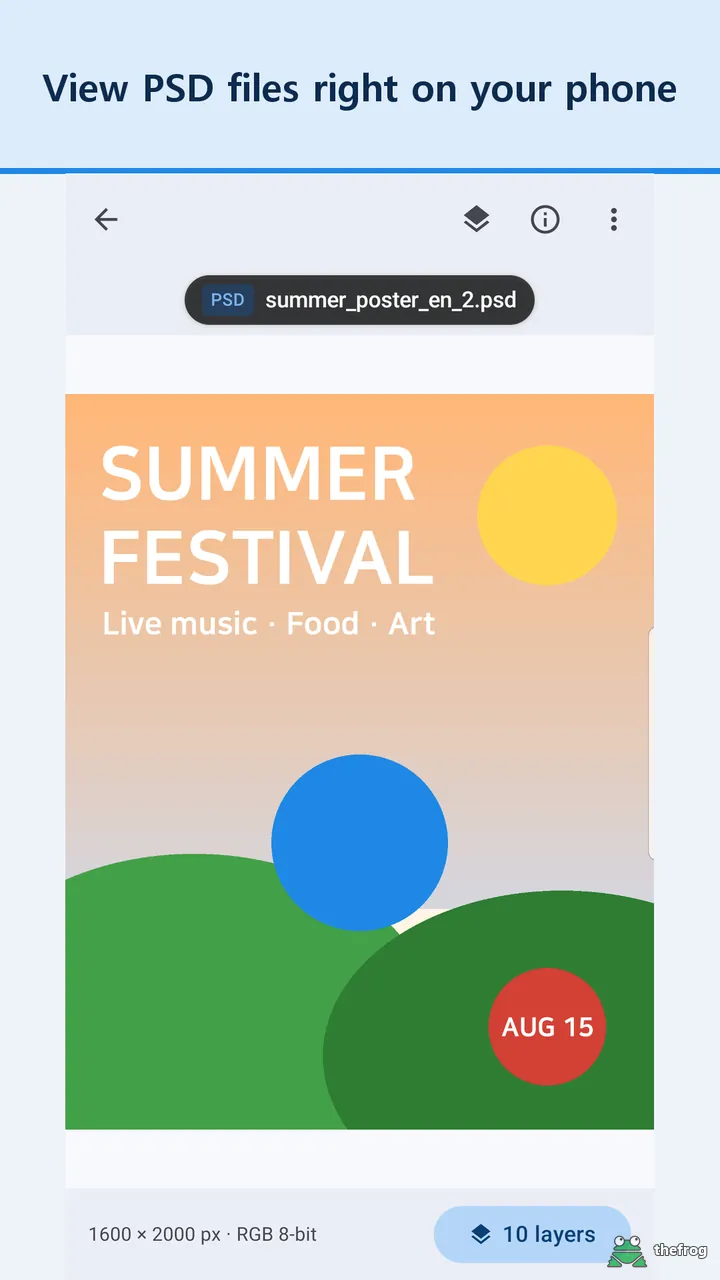
If you need to inspect PSD and PSB files on Android, consider PSD & PSB File Viewer. The app lets you browse the layer list for free, including groups, hidden layers, opacity, and layer types. With the optional Plus upgrade, you can tap the eye icon to turn layers on and off to compare design options, try a new color on a layer, or save a single layer as a PNG.
Layer visibility controls in PSD & PSB File Viewer work for RGB and Grayscale files with 8 or 16 bits per channel. Some elements, such as layer effects and adjustment layers, are not applied when layers are toggled, and the app indicates how many such elements a file contains. Your original file is not modified. File processing stays on your device without sending content to external servers.
You can get PSD & PSB File Viewer on Google Play. PSD & PSB File Viewer is an independent viewer, not an official Adobe app. Adobe and Photoshop are trademarks of Adobe Inc.
Reference: Adobe Help: Show and hide layers and groups in Photoshop.

Learn more about PSD & PSB File Viewer or get it on Google Play.

Enjoying the app? Leave a review on Google Play: PSD & PSB File Viewer