Layers
Brush Viewer lists the layers saved in a .procreate file, so you can see how the artwork is built. With Plus, you can also turn layers on and off on supported files.
1Tap the layers button
Open a file, then tap the layers button (two stacked diamonds) in the top bar.

2Read the layer list
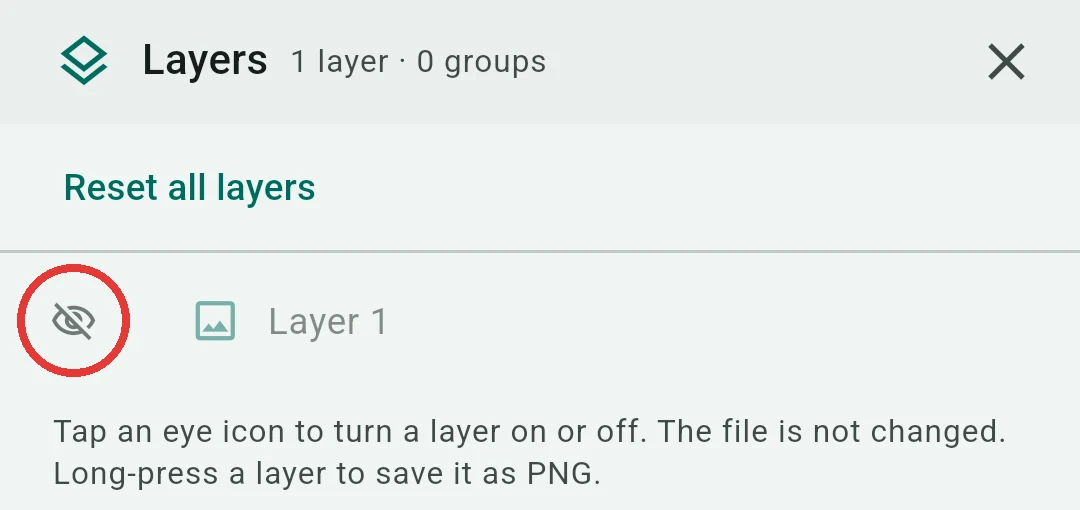
The Layers sheet opens. At the top you see how many layers and groups the file has. Each row shows the layer name, and its opacity when it is not 100%. Tap the arrow on a group to open or close it.

3Turn a layer on or off (Plus)
Tap the eye icon next to a layer. The picture updates and your file is never changed. The app composites the picture itself, so it may differ slightly from the original. Tap Reset all layers to go back.
4Files that cannot be recomposited
Some files cannot be recomposited by the app. They open a read-only Layer info list instead, with each layer or group shown as Visible or Hidden, Locked, and its opacity, as saved in the file.

Good to know: layer info is experimental and some files may not be read accurately. If a file's layer data can't be read, the sheet says so.