View and switch layers
See how a PSD file is built, and turn layers on or off to check the picture. The file itself is not changed.
1Tap the layers button
Open a file, then tap the layers button (stacked diamonds) in the top bar.

2Read the layer list
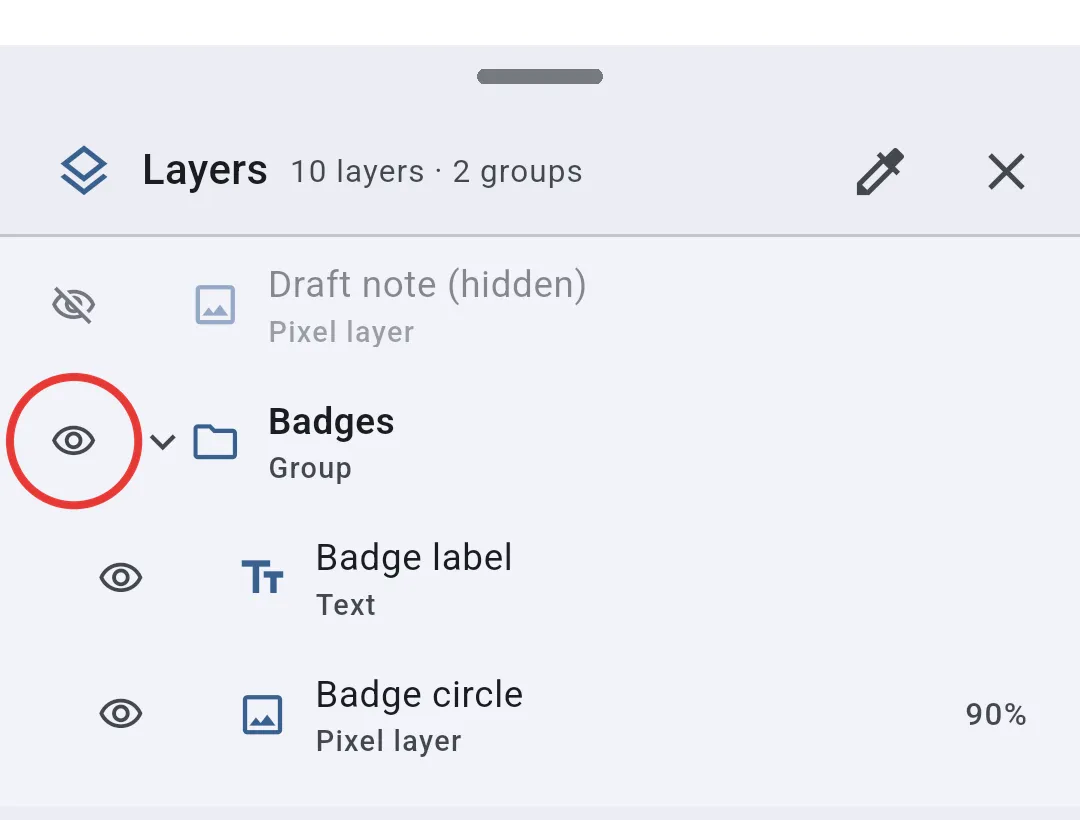
A Layers sheet opens from the bottom, with the number of layers and groups at the top. Each row shows the name and type, and the opacity when it is not 100%. Tap the arrow on a group to open or close it. Drag the handle up to see more.
3Turn a layer off or on
Tap the eye icon at the left of a layer or group.
4Check the result
The picture is redrawn without that layer. Here the red date badge is gone. Tap the eye again to bring it back, or tap Reset all layers above the list to return to how the file was saved.

Good to know: turning layers on and off is a Plus feature, and works with RGB and Grayscale 8/16-bit documents. The redrawn picture is made by the app and may differ from Photoshop.